

Securing an OpenWrt Router

So you’ve decided to change the firmware on your router from the one provided by your hardware manufacturer to the more open and secure OpenWrt firmware. Congratulations!
However, just because you have decided to increase the security of your device does not mean that you can rest on your laurels. Like any software, OpenWrt is also updated from time to time, mainly when security holes and problems are discovered that may cause unstable operation of our device.
Like any network device, it requires some initial setup to improve its security.
Optimised for OpenWrt 25.12 using
apkinsteadopkg
Root password
Our router uses the account with the highest privileges in the system by default - root. Its protection should be a priority for us. When logging in for the first time to the newly installed OpenWrt software, we will be asked to change it, but if we ignored it or set a password like admin, let’s change it to a unique one, known only to us, as soon as possible. A hacker who has the opportunity to break into your network will first check the most popular and default passwords used on routers.
To change the user password, go to System > Administration, where, in the first tab Router Password we can set a secure password.
We can also change the password by connecting to our router via SSH and executing the command:
passwd

SSH
While in System > Administration it is also worth taking a look at the SSH Access tab.
By default, our router listens on port 22 and all available interfaces — including the one used to access the Internet. I don’t have to say that having port 22 open, accessible from the Internet, is not a sensible solution. Although the default Firewall rules will protect us from the possibility of connecting to SSH our router from the Internet, it is worth changing the default settings.
And so: Interface we change to LAN (our local network)
And: Change the Port (on which the router will listen) to e.g. 9922 or any other port of your choice.

Save and Apply changes.
Administration panel (https)
Access to our router settings is done in a user-friendly graphical interface from a web browser. Just go to the page - address of our router (e.g. 192.168.1.1) and log in to our root account.
It’s all well and good, provided that no one on the network is listening to what we enter in the browser, especially since when we visit our router’s administration panel, the connection is made via unencrypted HTTP, so our password that we enter is also sent in unencrypted form. All you need is WireShark and you can easily find out what we are entering.
Therefore, it is worth establishing a connection to our router via an HTTPS encrypted connection.
Go to System > Administration, where, in the HTTP(S) Access tab, select Redirect to HTTPS.
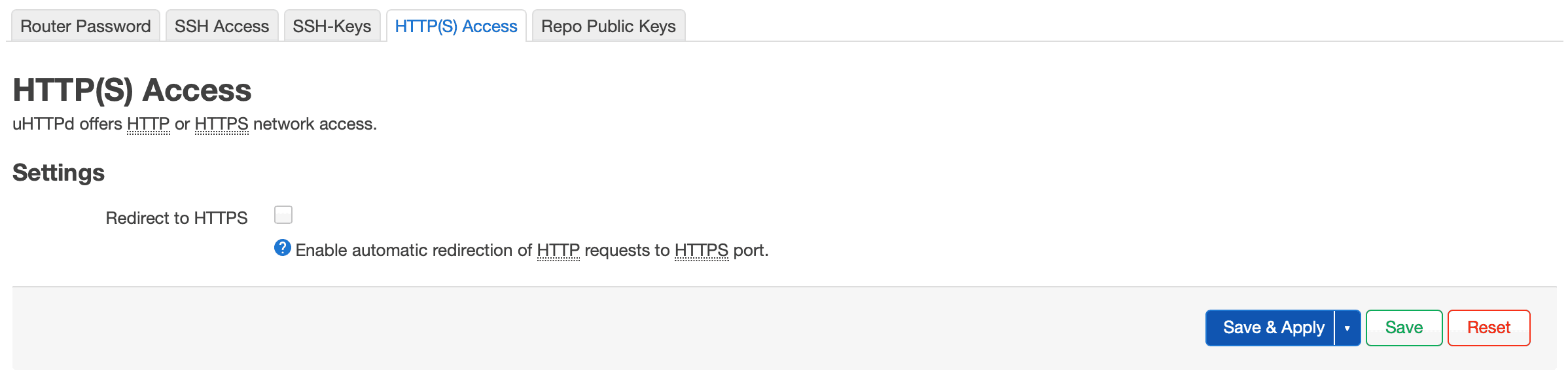
If your router does not have this tab, you need to install the appropriate package.
To do this, in System > Software we need to install the luci-ssl application (if we do not already have it in our system), or from the terminal:
apk update
apk add luci-ssl
If we perform our installation from the terminal, it is worth restarting our access via a web browser after the installation, which is done using the uhttpd package.
/etc/init.d/uhttpd restart
The first time you restart, a secure certificate for access via HTTPS will be generated.
Of course, the certificate that will be generated is not issued by any trusted institution, but signed by our router. For local purposes, this is not a problem at all, but when connecting to our router via HTTPS, we keep a warning about an untrusted certificate.
In the case of Safari we can click Show Details and click the link visit this website.

With Edge (Chromium) and Chrome it’s not that easy, as these browsers won’t let us proceed any further, even if we enter the advanced options, under which we should see a link allowing us to go to the page anyway.


To do this, we can use an unusual method. After going to the page that returns a certificate problem, we can write (we won’t see what we’re typing) in the browser window the word thisisunsafe. After a while, we’ll see that our page will refresh and we’ll be able to continue to our panel.
For Firefox, simply click the Advanced button and at the bottom of the page select the button stating that Accept the Risk and Continue.


A small inconvenience, but it also increases security when entering the password into our router.
Administration Panel (port)
In addition to introducing an encrypted https connection to our administration panel via a web browser (which is not very convenient due to the issue with certificates), we can also change the port on which our panel listens.
By default, this is port 80 for unencrypted HTTP connections or 443 for encrypted HTTPS.
To change these ports, we can install the luci-app-uhttpd package
apk update
apk add luci-app-uhttpd
Thanks to this, in the Services options we will receive an additional menu for managing the uHTTPd service.


In HTTP listeners (and similarly for HTTPS) you need to add a new port through which we will connect to our administration panel. For example, for HTTPS, if we want to change the port from 443 to 8443, we add (and remove the rest) the following lines:
0.0.0.0:8443
[::]:8443
We confirm everything by clicking the Save and Apply button.
If we did everything correctly, we go to our panel using the new address:
http://192.168.1.1:8443
Software (Packages)
Please be advised that the official stance of the OpenWrt maintainers is: “Do not use
apk upgradeto blindly mass-update your packages! Doing so will sooner or later brick your device.” I tend to disagree with that. I have been doing it successfully for years without any issues; however, that does not mean you will not encounter them. The decision is yours.
Apart from the fact that we have changed the manufacturer’s software on our router to a more secure one, it does not mean that everything should remain untouched for ages. We need to make sure that we constantly update the OpenWrt software and packages that we have installed on the router.
While the OpenWrt main firmware itself is not released very often, other software (firmware packages) used within our router are released with updates several times a week.
Therefore, it is worth taking care to update them regularly. To do this, go to System > Software, refresh the list with the Update list button, and then in the Updates tab, click on each software to update it.

The above method is somewhat time-consuming. We can also do this from an SSH terminal using a single command. Using this command, the router will retrieve information about current software versions and, based on what’s “outdated” on our router, automatically update it:
apk update; apk upgrade
And that would be all.
Best regards.



Comments & Reactions