

Attended Sysupgrade – The right way of updating OpenWrt Firmware

I should have discovered this years ago!
I never came across this feature, and it was apparently available a few versions ago. Just now, when version 25.12.0 was officially released, I learned how to simplify upgrading from one version to another (I did this from 24.10.2 to 25.12.0).
I have developed my own routine for backing up packages and configuration files, installing a new image, and restoring everything. To be honest, I always hate doing that, especially in a business environment, as it always requires some downtime. This is why I sometimes fall behind on some sub-versions of OpenWrt firmware (I was still on 24.10.2 instead of 24.10.5).
When you cannot afford extended downtime, you can minimise it with this approach: Attended Sysupgrade (ASU).
On its official page, you can read:
A couple of clicks and a short wait let you download and install a new image with your previous packages and configuration. This eliminates the need to make a list of packages you installed manually or re-enter the configuration just to upgrade your firmware.
This sounds like a dream, as this was the only feature that all OpenWrt users were missing – upgrading the firmware while everything stays the same.
This package comes preinstalled by default in the OpenWrt 25.12 series, along with the new package manager apk instead of opkg.
It’s like on routers with stock firmware: when you upgrade the firmware, your config stays there. Let’s see if that magic is indeed there. Spoiler alert: it is!
I was interested to see if I could simply update my router from OpenWrt 24.10.2 to 25.12.0 without losing time on backing up and restoring, as I have tended to do in the past.
Of course, I did my own backup the way I always do, just in case, but I was full of hope at this stage that all would go as planned.
On my current router, running 24.10.2, I installed Attended Sysupgrade (ASU):
opkg update
opkg install luci-app-attendedsysupgrade
When you request firmware with ASU, if any of the packages on your system do not exist in the latest version, it will fail, warn you about what is missing, and prevent you from moving forward — and that’s a good thing! I will explain further.
There is, however, one caveat that you need to remember.
ASU will not back up the /root folder by default, or any custom configuration in the /etc/ folder, if you do not tell them to do so in advance.
You can, of course, change that. If you follow my other OpenWrt posts, you know you can add files and folders to be kept by editing /etc/sysupgrade.conf or, from LuCI > System > Backup / Flash Firmware, adding them in the Configuration tab. Simple!
Important note!
When jumping between major releases (such as from 24.x to a future 25.x release), be aware that underlying software structures occasionally change. Whilst your configuration files will be preserved by the backup mechanism, it is always good practice to download a manual backup archive (.tar.gz) to your computer before initiating the upgrade, just in case a major syntax change requires you to reset and manually reconfigure certain services.
There was a very significant jump from version 23.x to 24.x in the past; due to many underlying changes with Firewall4 and interface names, I often needed to start from scratch. With 24.10 to 25.12.x, you don’t need to worry as much.
Let’s see how ASU works in practice!
Attended Sysupgrade (ASU) in practice
Once you have installed ASU and logged into the LuCI web panel, you will see a new option under System called Attended Sysupgrade, where you will be greeted with the following:
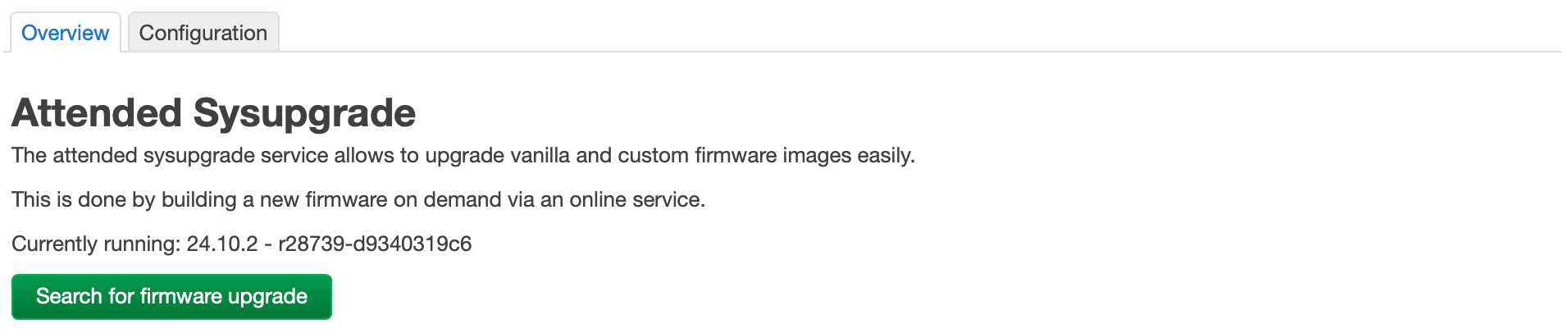
After clicking the green Search for firmware upgrade button, you will then be presented with the options available for your device.
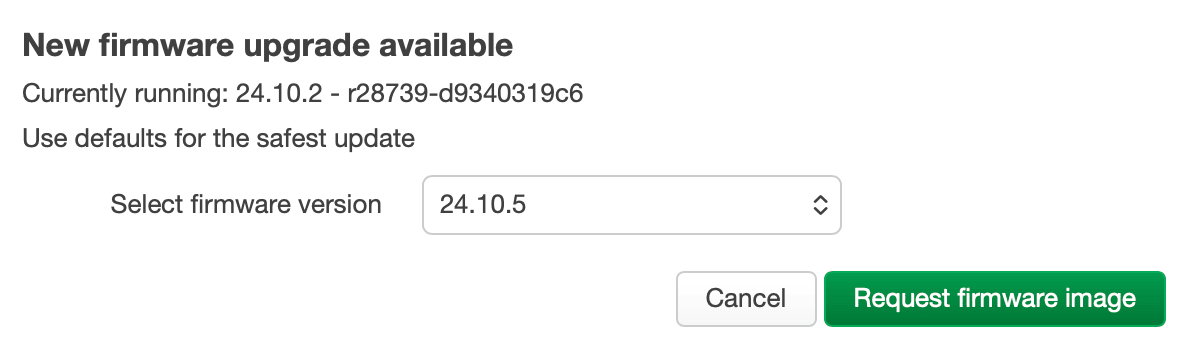
Because my device was on 24.10.2, the next version presented to me was 24.10.5. From the dropdown menu, I could then choose version 25.12.0.
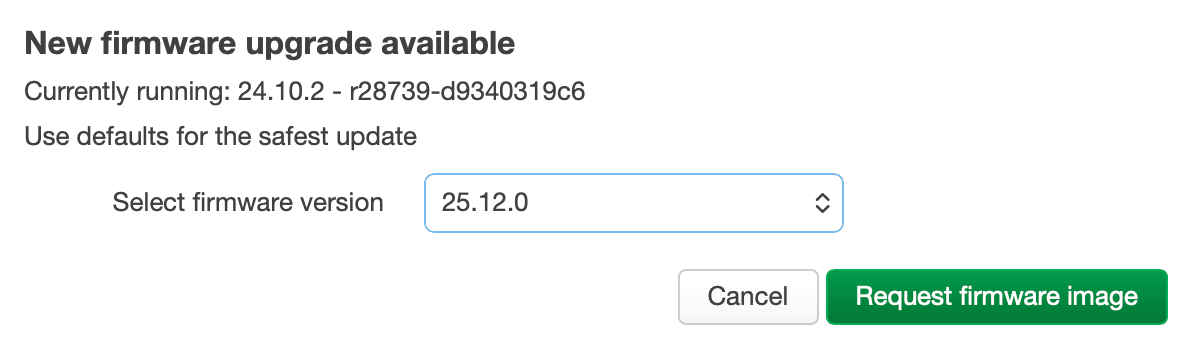
When you are ready to do so, click (NOT YET!) the green Request firmware image button.
But, before you do that…
Make sure to go to System > Backup / Flash Firmware and then to the Configuration tab.
There, you must add all the custom configuration files and folders you have on your router that must be maintained, backed up, and restored upon upgrade.
For example, mine looks like this:
# /etc/example.conf
# /etc/openvpn/
/etc/ssl/
/etc/cloudflared/
/root/
I want to keep the ssl folder and its contents, as well as cloudflared and my /root folder.
I also highly recommend that you Generate archive from the Actions tab and check that the archive is extractable (not corrupted). If, for some reason, it is corrupted, refer to my post: How to Backup Your OpenWrt Router When Built-in Tools Fail.
If your firmware should, for some reason, update with the new packages but lose its configurations, you can easily upload your backup via System > Backup / Flash Firmware > Restore backup, and have everything back as it was in no time.
Moving on…
Your router will communicate with the official OpenWrt servers and check what is available. At this time, it will check which packages are currently on your router and what is available in the repository.
If the server detects that any of your packages have not yet been moved to the new version, it will throw an error.
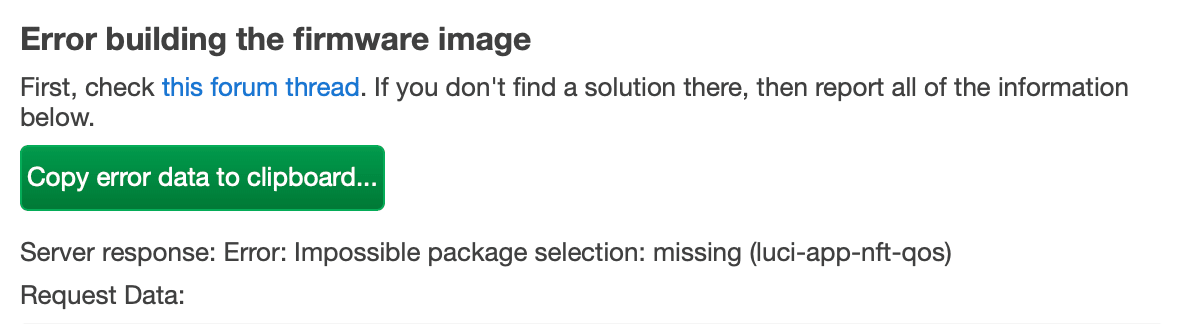
From this error screen, you will see that the package (luci-app-nft-qos), which is available in the 24.10.x repository, is not yet available in 25.12.x.
Because of that, you cannot move forward and you need to resolve this issue first.
You have two options:
- Hold off on the update until the package upon which you rely on your current device becomes available, or
- Remove the package that is causing the conflict, reboot your device, and try again.
Once the conflict is resolved, we can move on.
Now click Request firmware image and wait.

Firstly, the server will validate the packages that need to be included in your firmware.

Then it will build the firmware for you.

Once the firmware is successfully created, you will be presented with the following information.
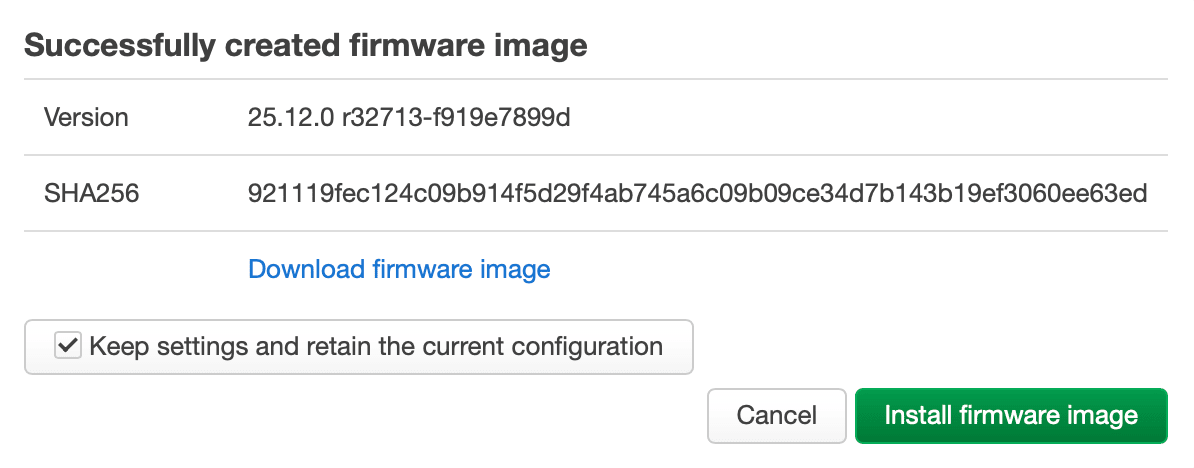
Before you click the green Install firmware image button, make sure that the option Keep settings and retain the current configuration is ticked as well.
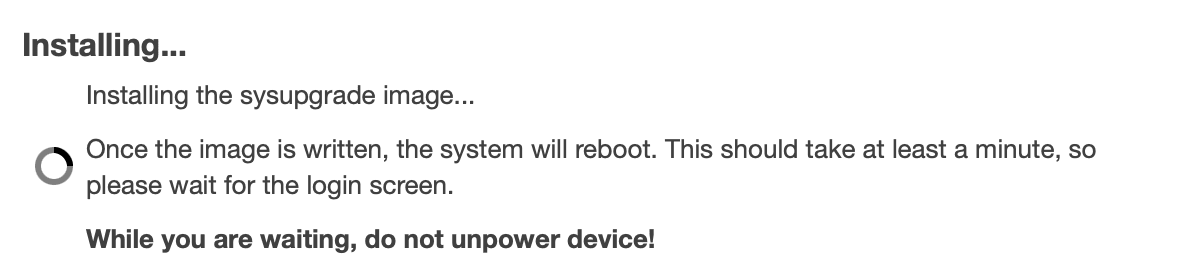
The installation will then commence.
Wait patiently until your router applies everything and reboots into the new version.
If all goes well, your router should restart with the new firmware, with all the packages that you previously installed (using the official installation method) and all configurations applied.
If you have upgraded to version 25.12.0 for the first time and you log back into LuCI, you will be greeted with a question asking if you want to automatically check for new firmware versions.
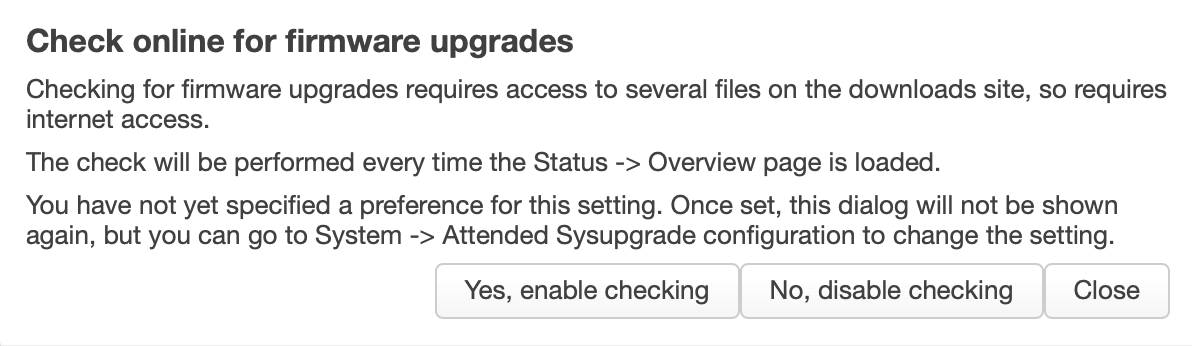
If you decide to enable checking, you will be asked, in the next step, to add one line to the router configuration.
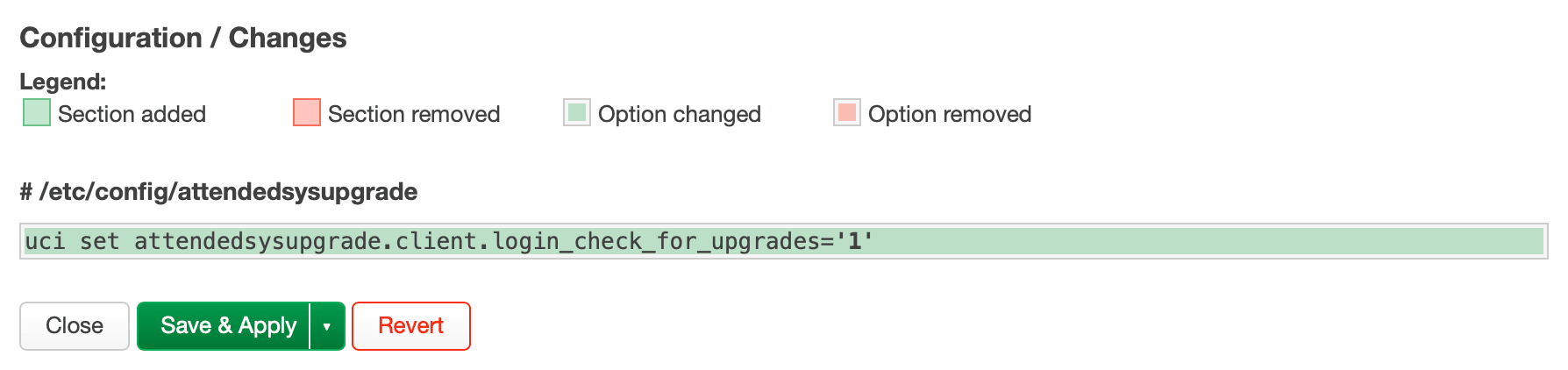
You just need to click Save & Apply and you are ready.
This method of upgrading OpenWrt will definitely help more users to supercharge their compatible routers, not only extending their lifespan but also increasing their privacy.
👏 🙌
PS. If you installed Cloudflare Tunnel on your OpenWrt Router, this package was installed manually. Despite the fact that it updates itself regularly, you will need to re-install it (re-download) after the first reboot with the new firmware. For that, refer to the Install the official cloudflared package step. Remember that in the 25.12 series, opkg has changed to apk.



Comments & Reactions